
Close Menu
Hollywood News Reporter
  • Home
  • Film
  • Television
  • Box Office
  • Reality TV
  • Music
  • Horror
  • Books
  • Technology
  • Politics
  • Cover Story
  • Contact
    • About
    • Privacy Policy
    • DMCA / Copyright Disclaimer
    • Amazon Disclaimer
    • Terms and Conditions

Subscribe to Updates

Get the latest creative news from FooBar about art, design and business.

What's Hot

Nominate your favourite UK grassroots music venue to win a bundle of Fender gear

U.S. sanctions Turkish bank accused of enabling Iran

How To See What’s Taking Up Space On Your Windows PC

Facebook X (Twitter) Instagram
Hollywood News Reporter
  • Home
  • Film
  • Television
  • Box Office
  • Reality TV
  • Music
  • Horror
  • Books
  • Technology
  • Politics
  • Cover Story
  • Contact
    • About
    • Privacy Policy
    • DMCA / Copyright Disclaimer
    • Amazon Disclaimer
    • Terms and Conditions
Hollywood News Reporter
You are at:Home»Technology»How To See What’s Taking Up Space On Your Windows PC
Technology

How To See What’s Taking Up Space On Your Windows PC

By AdminSeptember 5, 2026
Facebook Twitter Pinterest Telegram LinkedIn Tumblr Email Reddit
How To See What’s Taking Up Space On Your Windows PC


Use a methodical approach to see what’s using the most space on your PC and easily clean it up.
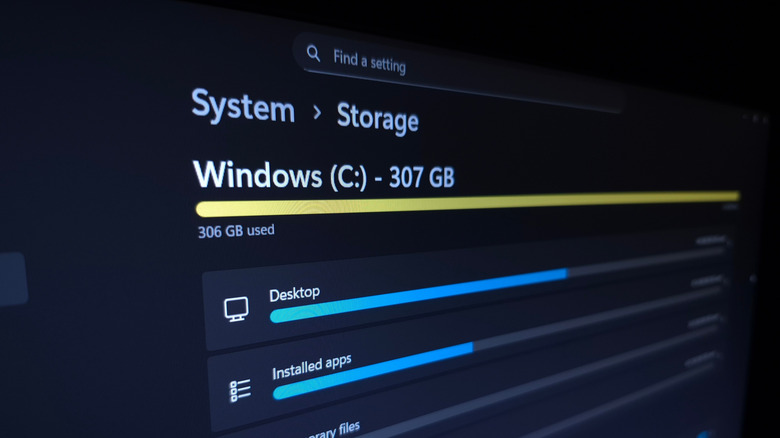

The Windows Storage screen showing space is almost full.
Nwz/Shutterstock

There’s so much competing for the space on your computer that it’s easy to lose track of it all. Programs, photos, videos, games, downloads and your other items live alongside system data like temporary files and updates. That’s not to mention duplicate files and other junk that serves no purpose.

When you need to clean up some space in Windows, it’s easy to see what’s using the most storage. With this laid out, you can create the most room with the least effort, only dipping into more advanced methods if you’re really pressed for space. Don’t go digging into folders at random; weeding out what’s monopolizing your space gives you more breathing room.

The first step: Storage settings

Let’s begin with Windows’ built-in storage management tool: press Win + I to open the Settings panel, then go to System > Storage. Here, you’ll see the total space in use on your main disk, along with a breakdown of what’s taking it. Select one of these categories to jump into the relevant place and manage it.

One of the biggest hogs is likely to be Installed apps; clicking this brings you to the Settings > Apps > Installed apps page. Change the Sort by box to Size (Large to Small) to put the lowest-hanging fruit at the top. Under the three-dot (…) menu, hit Uninstall to remove anything you don’t use anymore. If you have at least two drives, some programs (like games from the Microsoft Store) provide a Move option.

The Temporary Files category shows several checkboxes for items like Thumbnails that can be easy space-savers. Click Cleanup System Files to show more types of clutter. Be careful with Downloads and the Recycle Bin — while those spots can use lots of space, you might not want to delete them outright. It’s best to open the Recycle Bin from your desktop and quickly check for anything you want to restore, since clearing the bin permanently deletes the files in it. Similarly, you might have items you want to save in your Downloads.

If you have multiple storage drives, back on the Storage page, expand the Advanced storage settings section and choose Storage used on other drives to see the same breakdown for the others.

Reducing the storage used by system features
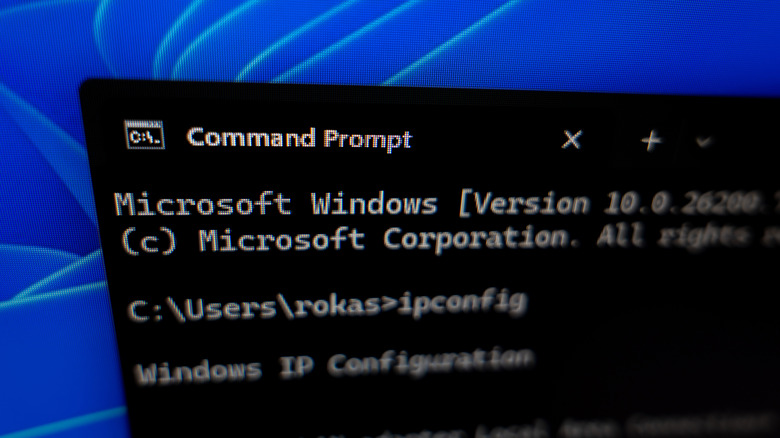

The Windows Command Prompt showing an
Rokas Tenys/Shutterstock

The System & reserved section, which may be hidden behind Show more categories, shows how much storage Windows features are using. While these should generally be your last resort to remove since disabling them removes important functionality, it’s possible to reclaim their space.

If you don’t use hibernation on your PC, you can disable it to remove the large hiberfil.sys file. Type “cmd” into the Start menu, right-click the Command Prompt entry, and choose Run as administrator. In the command window, type powercfg /hibernate off and hit Enter. If you ever want to use hibernation again, use powercfg /hibernate on.

System restore sends your PC “back in time” to reverse a bad update or unwanted change. Click Manage system restore to open its Control Panel window; there, click your System drive and choose Configure. If you’re OK with having fewer restore points in case something goes wrong, drag the Max Usage slider down. Consider using Delete to erase all restore points for even more space in a pinch.

Analyze the files taking space with TreeSize


A row of folders with an arrow pointing at one of them.
Sankai/Getty Images

The Storage menu is a good start, but it’s not perfect for checking individual files. Categories like Music and Videos (and Other, where Windows puts anything it can’t categorize) just open File Explorer locations, which isn’t useful. Several third-party tools make it easier to visualize what’s using the most space across folders; my favorite is TreeSize Free.

For best results, use the button on the top toolbar to run the program as an admin, then click Select Directory to choose what you scan — your entire C: drive is sensible. You’ll see the largest folders at the top; use the arrows to expand them and drill down. Folders that are likely to be huge include Program Files and Program Files (x86), which is where your installed apps live. Don’t delete these files directly — uninstall them as explained above.

Find your account under Users to see which of your personal files should be moved to another drive or deleted. If you see many gigabytes used under AppData, consider clearing the cache or removing downloads for apps like browsers, streaming platforms, and email clients. Right-click any folder and choose Open to show it in the familiar File Explorer interface.

dupeGuru is another tool worth a try. It finds copies of files across your system, which can be a sneaky space waster TreeSize won’t catch.

How to easily free up space on your PC

The best ways to free up storage on Windows depend on what you’ve seen taking it up after following the above steps. If you have Steam games installed that you never play anymore, open the client and uninstall them. Erase large files you don’t need anymore, and make sure to clear the Recycle Bin once you’ve recovered anything you still want from it.

Consider offloading big files you still want but don’t have room for. For instance, upload long videos to YouTube, then delete the copy on your computer. Sync your photos with a service like Google Photos, then remove your local copies. Or set OneDrive to only keep cloud copies of files you haven’t touched in a while. While these kinds of options can help when space is at a premium, you should have multiple copies of any important data for backup purposes.

If you’re constantly running low, buying a secondary drive is a worthwhile expense. The best external SSDs add a terabyte or more so you don’t have to agonize over what to delete. External HDDs aren’t as fast, but are still fine for data you don’t touch often and come at a lower cost given the extreme prices of storage right now. Even a few flash drives can help out.

To save time going forward, head back to Settings > System > Storage and click Storage Sense. This feature automatically cleans up junk every so often without your intervention. Enable Keep Windows running smoothly… to remove temp files on a regular basis, then enable Automatic User content cleanup.

You can choose to run Storage Sense only when your storage gets low, or at regular intervals. Be sure to set the Recycle Bin and Downloads options wisely, since you could accidentally lose data if you’re not careful. In the future, as part of organizing your PC, consider putting only files you don’t need long-term in Downloads so you can clear it without worry.


Original Source Link

Share. Facebook Twitter Pinterest LinkedIn Reddit WhatsApp Telegram Email
Previous ArticleBook Riot’s Deals of the Day for September 4, 2026
Next Article U.S. sanctions Turkish bank accused of enabling Iran

Related Posts

Japan Is Launching a Probe to Collect the First-Ever Samples From a Martian Moon

September 4, 2026

Audacity’s New Look Is Finally Here, Along With Its Largest Feature Update In Years

September 4, 2026

Nvidia RTX Spark ‘Superchip’: The First AI PCs Are Here

September 3, 2026

Adobe Brings 70+ Tools From Photoshop, Illustrator And More To Slack

September 3, 2026

The Cybercab Is Almost Here. Now Comes the Hard Part

September 2, 2026

Are All TVs At Risk From Burn-In? Here’s How To Avoid The Problem Altogether

September 2, 2026
Recent Posts

The Axis of Evil Summit By Howard Bloom

Rock + Metal Bands That Released Albums 40 Years Apart

EU joins U.S. sanctions push as South Korea weighs Hormuz deployment

Japan Is Launching a Probe to Collect the First-Ever Samples From a Martian Moon

From Fighter Jets to Route 66, Richard Herman Finds a New Path in “Discovery Road”

‘The Odyssey’ Gets Extended Run In Imax During September

Jelly Roll Knew Political Comments Could Cost Him Half His Fans, Big & Rich Singer Says

Categories
  • Books (2,329)
  • Box Office (1,711)
  • Cover Story (62)
  • Featured Stories (37)
  • Film (2,346)
  • Horror (2,333)
  • Music (2,399)
  • Politics (1,498)
  • Reality TV (1,788)
  • Technology (2,339)
  • Television (2,214)
  • Uncategorized (1)
Archives
Useful Links
  • About
  • Contact
  • Privacy Policy
  • DMCA / Copyright Disclaimer
  • Amazon Disclaimer
  • Terms and Conditions
Popular Posts

Iron Maiden Launch 2026 North American Tour

August 30, 2026

Iceland rejects reopening EU talks in closely fought referendum

August 30, 2026

Why the Hottest New Wearables Want to Be Ignored

August 30, 2026

The Buzziest Books of August | 2026

August 30, 2026

Nicole Kidman’s Slinky Low-Cut Rodarte Dress Is Lacy & Sheer Up Top

August 30, 2026

A Fast and Exhilarating Adventure

August 30, 2026

‘America’s Got Talent’ Reveals Simon Cowell’s Replacement

August 30, 2026
Categories
  • Books (2,329)
  • Box Office (1,711)
  • Cover Story (62)
  • Featured Stories (37)
  • Film (2,346)
  • Horror (2,333)
  • Music (2,399)
  • Politics (1,498)
  • Reality TV (1,788)
  • Technology (2,339)
  • Television (2,214)
  • Uncategorized (1)
Recent Posts
  • Nominate your favourite UK grassroots music venue to win a bundle of Fender gear
  • U.S. sanctions Turkish bank accused of enabling Iran
  • How To See What’s Taking Up Space On Your Windows PC
  • Book Riot’s Deals of the Day for September 4, 2026
  • ‘Spider-Man’ Labor Day Brings It Closer To ‘Force Awakens’
  • Georgina Rodríguez Ditches Cristiano Ronaldo’s $3M Ring for Major Bling
  • Anson Williams & Brian Austin Green Retro Stylized Horror Movie- ‘The 3 Killer Pigs’ Sets a limited U.S. Theatrical Run across the United States; Quiver to Release on VOD October 23rd, 2026.
Our Picks

Nominate your favourite UK grassroots music venue to win a bundle of Fender gear

U.S. sanctions Turkish bank accused of enabling Iran

How To See What’s Taking Up Space On Your Windows PC

Book Riot’s Deals of the Day for September 4, 2026

© 2026 Hollywood News Reporter. All rights reserved. All articles, images, product names, logos, and brands are property of their respective owners. All company, product and service names used in this website are for identification purposes only. Use of these names, logos, and brands does not imply endorsement unless specified. By using this site, you agree to the Terms & Conditions and Privacy Policy.

Type above and press Enter to search. Press Esc to cancel.

We use cookies on our website to give you the most relevant experience by remembering your preferences and repeat visits. By clicking “Accept All”, you consent to the use of ALL the cookies. However, you may visit "Cookie Settings" to provide a controlled consent.
Cookie SettingsAccept All
Manage consent

Privacy Overview

This website uses cookies to improve your experience while you navigate through the website. Out of these, the cookies that are categorized as necessary are stored on your browser as they are essential for the working of basic functionalities of the website. We also use third-party cookies that help us analyze and understand how you use this website. These cookies will be stored in your browser only with your consent. You also have the option to opt-out of these cookies. But opting out of some of these cookies may affect your browsing experience.
Necessary
Always Enabled
Necessary cookies are absolutely essential for the website to function properly. These cookies ensure basic functionalities and security features of the website, anonymously.
CookieDurationDescription
cookielawinfo-checkbox-analytics11 monthsThis cookie is set by GDPR Cookie Consent plugin. The cookie is used to store the user consent for the cookies in the category "Analytics".
cookielawinfo-checkbox-functional11 monthsThe cookie is set by GDPR cookie consent to record the user consent for the cookies in the category "Functional".
cookielawinfo-checkbox-necessary11 monthsThis cookie is set by GDPR Cookie Consent plugin. The cookies is used to store the user consent for the cookies in the category "Necessary".
cookielawinfo-checkbox-others11 monthsThis cookie is set by GDPR Cookie Consent plugin. The cookie is used to store the user consent for the cookies in the category "Other.
cookielawinfo-checkbox-performance11 monthsThis cookie is set by GDPR Cookie Consent plugin. The cookie is used to store the user consent for the cookies in the category "Performance".
viewed_cookie_policy11 monthsThe cookie is set by the GDPR Cookie Consent plugin and is used to store whether or not user has consented to the use of cookies. It does not store any personal data.
Functional
Functional cookies help to perform certain functionalities like sharing the content of the website on social media platforms, collect feedbacks, and other third-party features.
Performance
Performance cookies are used to understand and analyze the key performance indexes of the website which helps in delivering a better user experience for the visitors.
Analytics
Analytical cookies are used to understand how visitors interact with the website. These cookies help provide information on metrics the number of visitors, bounce rate, traffic source, etc.
Advertisement
Advertisement cookies are used to provide visitors with relevant ads and marketing campaigns. These cookies track visitors across websites and collect information to provide customized ads.
Others
Other uncategorized cookies are those that are being analyzed and have not been classified into a category as yet.
SAVE & ACCEPT